 TLCode
AI coding agent vs chatbot vs autocomplete: which do you actually need?
“AI coding assistant” covers three different kinds of tool. Autocomplete finishes your line, a chatbot answers your question, and an agent does a task. Choosing well saves money and avoids disappointment.
Ask ten developers what an AI coding assistant is and you will get ten different answers, because the label is stretched over very different products. One person means the grey suggestion that appears as they type. Another means a chat window where they paste an error. A third means a tool that reads a whole project, edits a dozen files and runs the tests while they make coffee. All three use similar models, yet they behave differently, cost differently, fail differently and suit different work.
This guide separates the three categories, explains how an agent actually works, and gives you a simple way to choose for each task. It is written for working developers rather than for newcomers, and it is honest about limits, including those of the tool we build. TLCode is an agent-first Windows IDE, so we describe the agent in more detail, but the framework applies to any product.
The three kinds of AI coding tool
1. Autocomplete: the fast suggester
Autocomplete watches what you type and predicts what comes next: the rest of the line, the body of the function you just named, the next few lines of a repetitive pattern. It lives inside your editor, answers in a fraction of a second and asks nothing of you except pressing Tab.
Its strengths are speed and flow. You stay in the file, in the moment, and the model fills in what you already know how to write. Its limits are scope and control. It sees the code around your cursor, sometimes a few open files, and it cannot go and look something up, run your tests or change another file. It also optimizes for plausibility, so it happily completes code that is subtly wrong.
2. Chatbot: the explainer and drafter
A chat assistant lives in a conversation, either inside your editor or in a browser. You describe a problem, paste code or an error, and receive an explanation, a snippet or a design suggestion. You copy what is useful into your project.
Its strengths are explanation, brainstorming and learning. It is excellent for “why does this fail?”, “what is the difference between these two approaches?” and “write a function that does X”. Its limits are that you are the bridge: it cannot see your whole project unless you paste it, cannot run anything and cannot apply its own changes. Every answer is only as good as the context you supply.
3. Agent: the task doer
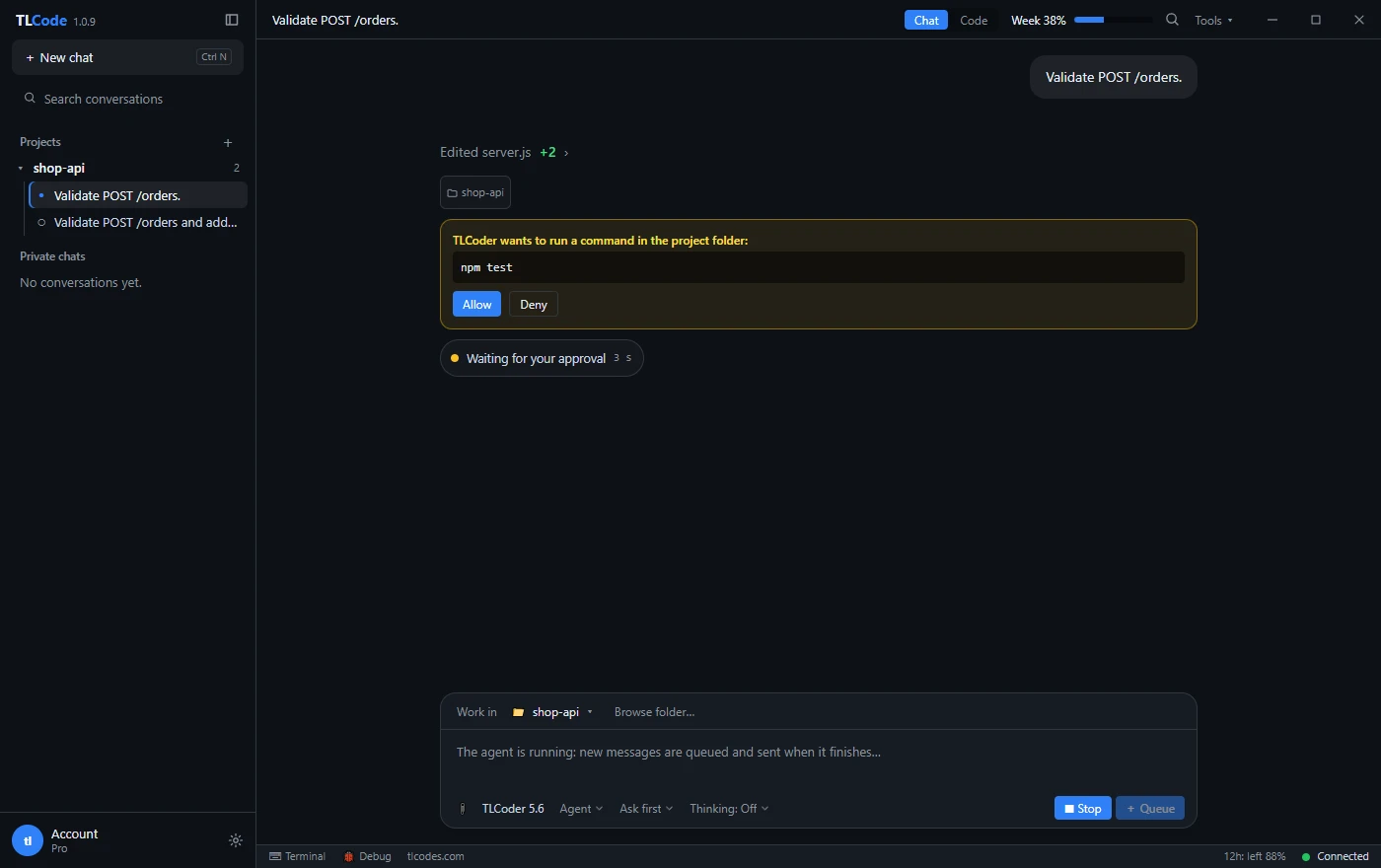
An agent is given a goal and works toward it in a loop. It reads files, searches the project, edits code, runs commands such as the build or the tests, reads the output and tries again until the job is done or it is stuck. It lives in a tool with access to your project folder and a set of permitted actions.
Its strengths are multi-step work and context. It can make a change that spans several files, verify it against the build and report what happened. Its limits are cost, risk and the need for supervision. It uses far more model calls per task, can make larger mistakes than a single suggestion, and needs guardrails: approvals, diffs and undo.
How an agent works, step by step
Demystifying the agent helps you use it. Under the hood there is no magic, just a loop that a program runs around a language model.
- Understand. The agent builds context: it lists directories, reads relevant files and sometimes searches for names and usages. In TLCode this includes an optional research step in which read-only helpers scan the structure of an existing project before the main agent writes its first line.
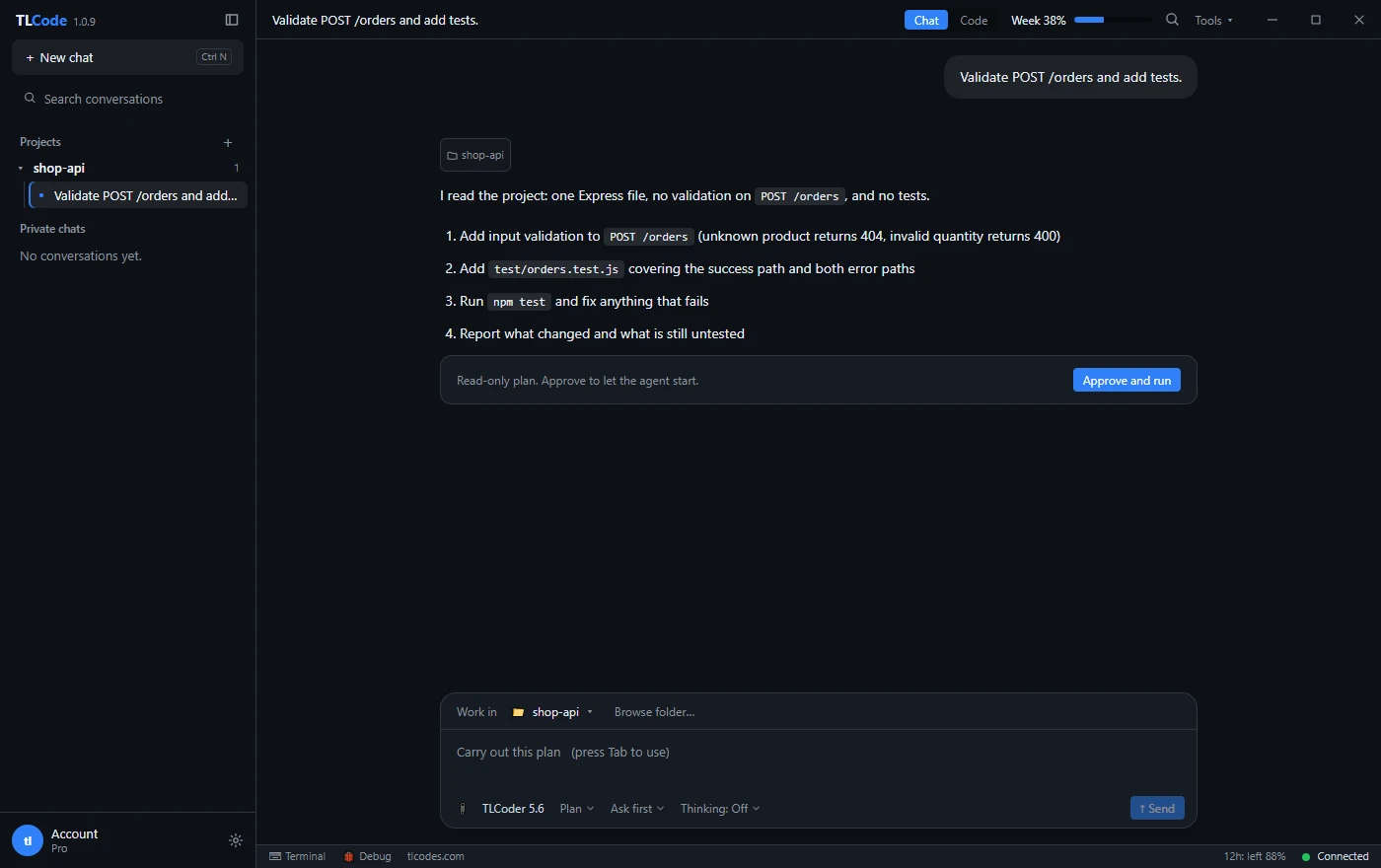
- Plan. For anything larger than a tiny edit, a good agent writes down steps. A visible plan is your best chance to correct course early.
- Act. The model asks for a tool: read a file, write a file, run a command. The program carries out the request, subject to your permissions, and returns the result to the model.
- Observe. The result, such as a compiler error or a failed test, goes back into the conversation. The model reads it and decides what to do next.
- Repeat or stop. The loop continues until the goal is met, the agent decides it is blocked or it reaches a step limit.
- Report. A good agent says plainly what it did, what it verified and what is still uncertain.
Because each pass is a fresh model call carrying the history so far, long tasks consume more usage than single questions. That is one reason plans have usage allowances. We explain how ours work in this guide.
The tools an agent uses
An agent is only as capable as the tools it can call. Typical ones include:
- File operations: list, read, create, edit and patch files in the project.
- Search: find text across the project or look up symbols.
- Command execution: run the build, tests, linters and scripts in a terminal.
- Version control: check status, view diffs and commit.
- Web access: read documentation pages or search for an error message, when enabled. In TLCode this is a setting you can turn off, and it sends only search terms and URLs, not project data.
- External tools: connections through the Model Context Protocol (MCP) to services such as issue trackers or databases.
- Screenshots and attachments: reading an error shown in an image, for example.
Every tool is also a risk. Reading files exposes content to the model, running commands can change your machine and web access can bring in untrusted text. That is why permissions matter so much, and why we dedicate a whole guide to running an agent safely.
Side-by-side comparison
| Autocomplete | Chatbot | Agent | |
|---|---|---|---|
| Who drives | You, line by line | You, question by question | You set the goal; it works |
| Context it sees | Code near the cursor | What you paste or attach | The project it can read |
| Can run code | No | No | Yes, with permission |
| Can edit files | Inserts text at the cursor | No, you copy | Yes, shown as diffs |
| Speed per interaction | Instant | Seconds | Minutes |
| Cost per interaction | Lowest | Low | Highest |
| Best at | Typing less | Understanding and drafting | Finishing multi-step tasks |
| Typical failure | Plausible wrong code | Answers without your context | Large, confident mistakes |
| Safety net needed | Your own reading | Your own testing | Diffs, approvals, undo, tests |
Which tool for which task
A useful rule of thumb: use the lightest tool that can finish the job, and escalate when you notice yourself doing mechanical work for it.
Use autocomplete when
- You know what you want to write and just want to type less.
- The code is repetitive: mapping fields, writing similar test cases, filling in boilerplate.
- You are in a flow state and do not want to leave the file.
Use chat when
- You want to understand something: an error message, a library, a concept, unfamiliar code.
- You are comparing approaches before deciding.
- You need a self-contained snippet, such as a regular expression, a SQL query or a small function.
- You are learning a new language or framework and want explanations that adapt to your questions.
Use an agent when
- The change touches several files: adding a field through the model, API and tests.
- The task needs verification: “make the build pass”, “fix the failing tests”.
- You are exploring an unfamiliar codebase and want it to find where something happens and make the change.
- The work is tedious and well specified: migrating an API, adding types, writing tests for existing code.
- You can describe done clearly and review the result.
Do it yourself when
- The change is smaller than the time it takes to explain it.
- The design is the hard part and you have not decided yet. Sketch the design first, then hand over the implementation.
- The code is highly sensitive and you want full control, such as cryptography or billing logic. Use the assistant for review and tests rather than for writing it.
One task, three ways
Abstract comparisons only go so far, so take a concrete task: add a discountCode field to an order in a small web API, validate it, store it and cover it with a test. Here is what each kind of tool does with it.
With autocomplete
You open the model file and start typing the new field. The tool suggests the type and a matching line in the serializer. You move to the validation function, type the first condition, and it fills in the rest. You do the navigation, the decisions and the typing of structure. The tool saves you perhaps a third of the keystrokes, and you stay in complete control. If you forget to update the database migration, nothing reminds you.
With chat
You paste the model and the handler and ask, “How should I add and validate an optional discount code?” You get an explanation and a proposed change, perhaps with a note about case sensitivity and a suggestion to check for expiry. You copy the parts you like, adjust names to match your project and run the tests yourself. This is a good mode when you are not sure about the design, because the explanation is as valuable as the code. The cost is the copy-and-paste loop and the context you must supply each time.
With an agent
You write one clear request: “Add an optional discountCode to orders. Validate that it is 4–12 uppercase letters or digits. Store it, include it in the order response and add tests for valid, invalid and missing codes. Do not change other behavior.” The agent searches for the order model, the handler, the migrations directory and the existing tests, proposes a plan, edits the files, adds a migration and tests, runs the suite and reports. You read the plan and review the diff.
The agent saves the most time on a task like this, because most of the work is finding the right places and keeping them consistent. It also carries the most risk, because it touched many files. That is exactly why you ask for a plan first, read the diff and keep the change small.
| Step | Autocomplete | Chat | Agent |
|---|---|---|---|
| Find the right files | You | You | Agent |
| Design decision | You | Shared | Agent proposes, you approve |
| Write the code | Shared | Chat drafts, you paste | Agent |
| Run the tests | You | You | Agent |
| Review | You | You | You |
Common misconceptions
“An agent is always better than chat”
Not so. For understanding and design, a conversation is often faster and cheaper, and you stay in the loop. Agents shine when the task is well specified and verifiable.
“A bigger model removes the need for review”
Better models make fewer obvious errors and more subtle ones. Review stays essential, as explained in our guide to reviewing AI-generated code.
“Agents work on their own without guidance”
They work best with clear goals, constraints and acceptance criteria. Vague requests produce wandering, expensive sessions. A few extra sentences in the request save a lot of time.
“Autocomplete is obsolete now”
It is still the fastest way to write code you already understand. Its value is flow, not autonomy.
“If the agent ran the tests, the change is correct”
The tests it ran might not cover the behavior you care about, or the agent might have changed them. Check what was run, read the test diff and add tests for the behavior that matters.
How to evaluate tools for yourself
Marketing pages cannot tell you how a tool fits your work. A one-hour trial can. Choose three real tasks of different sizes from your backlog: a small bug, a mid-sized feature and a tedious refactor. Run each task with the tool, and record:
- Time to a correct result, including your review and fixes, not just the time the tool spent.
- Number of interventions, meaning how often you had to correct, re-prompt or undo.
- Quality of the diff, whether it was focused and consistent with your code style.
- Honesty of the report, whether the summary matched what really happened.
- Cost, including allowance or credits consumed.
- Comfort, because a tool you dread using will not save you time.
Repeat the exercise after a month of use. Your prompts will have improved, and so will the results.
Cost and usage: why agents are priced differently
Autocomplete is cheap because each request is small and the answer is short. A chat message costs more because it carries the conversation. An agent task can involve dozens of model calls, each carrying a growing history of files and command output, which makes it the most expensive kind of interaction by far.
This is why many services meter agent use with allowances or credits rather than a single flat rate. TLCode uses flat monthly plans with a weekly allowance and a 12-hour allowance, so one long session cannot consume a whole week by accident. Practical ways to spend allowance wisely:
- Use chat for questions and the agent for work.
- Give focused tasks with clear acceptance criteria, so the agent does not wander.
- Start a fresh conversation for a new topic, since a long history is sent with every call.
- Use plan mode before big jobs, since a reviewed plan avoids expensive rewrites.
See pricing for the plans and allowances.
What each tool sends, and where
Privacy differs by category, and it is worth knowing before you adopt anything. Autocomplete typically sends the code around your cursor, and sometimes parts of other open files, with every suggestion. A chatbot sends exactly what you paste or attach, plus the conversation so far. An agent sends whatever it reads or produces while it works: file excerpts, command output, error messages and its own previous steps.
In every case the content travels to a model provider, so check the provider’s policy on retention and on training, and keep secrets out of anything an assistant can read. For TLCode, project files stay on your computer and only the content a request needs is sent for processing; the privacy policy states that prompts and code are used only to produce a response and are not used to train models. Whatever tool you choose, keep API keys and passwords in environment variables or a secrets manager, add sensitive folders to your ignore rules and avoid pasting customer data.
If your organization restricts which code may leave its network, confirm the rules before you point any agent at a project, and ask your security team to approve the provider. A few minutes of checking is much cheaper than explaining a leak later.
Risks that grow with autonomy
More autonomy brings more value and more risk, in roughly this order:
- Autocomplete: bad suggestions you accept without reading. Low impact per instance, but they add up.
- Chat: a wrong answer you paste in. You see everything you apply.
- Agent reading files: content from your project goes to the model. Check what is sent and keep secrets out of the folder.
- Agent editing files: a large change that looks fine. Mitigated by diffs, version control and undo.
- Agent running commands: changes outside the project, deleted files, network calls. Mitigated by approvals, allow and block rules and by running in a disposable environment when in doubt.
- Agent with external tools: actions in other systems, and untrusted content coming in. Mitigated by narrow permissions and by treating fetched content as untrusted.
The mitigations are largely the same: small tasks, visible plans, reviewed diffs, approvals for risky actions and the ability to undo. Our guide on reviewing AI-generated code covers the habits that keep quality high.
Combining all three in one day
You rarely have to choose only one. A realistic day might look like this:
- Morning: use chat to understand a bug report, paste the stack trace and ask for hypotheses.
- Planning: ask the agent in plan mode to propose steps for the fix and read them.
- Implementation: let the agent make the change and run the tests while you answer messages. Review the diff afterward.
- Polish: use autocomplete for the small edits, comments and a few extra test cases.
- Review: ask the assistant to critique the diff for a specific concern, then do your own pass.
The common thread is that you stay responsible for direction and review, and the tools take the mechanical work.
Where TLCode sits
TLCode is built around the agent, with chat available in the same window. It has Chat, Agent and Plan modes, a code editor, a built-in terminal and Git, and permission rules for commands. It runs on 64-bit Windows 10 and 11 and uses its Abliterated Large v2 model. Its editor can show inline suggestions when the connected model supports fill-in-the-middle completion, but the agent and chat are the focus, and many developers keep the autocomplete in their main editor for line-by-line typing. If you work on macOS or Linux, or you need a specific third-party model, a different tool will fit better. Our comparison lays out the differences honestly.
Frequently asked questions
Is an agent just a chatbot with extra steps?
Not exactly. A chatbot answers; an agent acts. The difference is tools and a loop: the agent can read files, edit them and run commands, then react to the results.
Will an agent replace autocomplete?
They solve different problems. Autocomplete saves keystrokes in the moment. An agent completes tasks. Many developers use both.
Are agents safe to run on my own machine?
They can be, with guardrails: work on a branch, review diffs, require approval for commands, block destructive ones and keep secrets out of the project. See our guide to running an agent safely.
Why does an agent sometimes get stuck?
Vague goals, missing context or a failing environment. Clear acceptance criteria, small tasks and a working build make a large difference. Our guide to writing prompts for coding agents goes through examples.
Which is best for beginners?
Chat is the best teacher. Use it to ask why, not only how, and type the code yourself at first. Add an agent once you can review what it writes.
Do agents need a powerful computer?
Hosted agents run the model on servers, so you need an Internet connection rather than a powerful graphics card.
Summary
Autocomplete finishes your lines, a chatbot answers your questions and an agent completes your tasks. Choose the lightest tool that gets the job done, escalate for multi-file, verifiable work and keep the safety nets that grow with autonomy: plans, diffs, approvals and undo. Used together, the three tools cover the whole range of daily development, and you stay in charge of direction and review.